Creating Expense Reports
Our advanced reporting options itemize and summarize expenses and payments for practically any situation. They automatically draw in data so you don't have to select a long list of items manually.
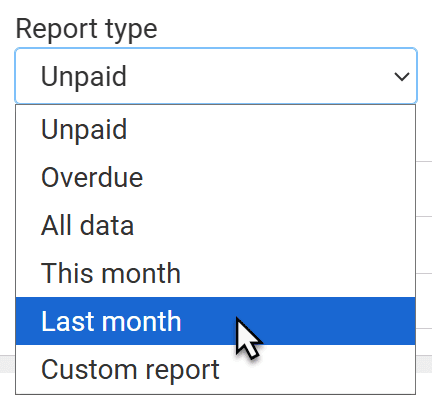
On the expense reports page, you'll choose from six types of reports. (Read about each one further below.) Then you can drill down even more by selecting which categories or children to include.
Narrowing down by categories and children
Every report lets you narrow down by categories and children.
For example, you might:
- Make an "unpaid" report just about medical expenses if you want those reimbursed ASAP.
- Make an "overdue" report on all the categories in your court order to get the court's help recouping costs.
- Make a "last month" report just about your oldest child to see how costs have changed now that they have a job.
Categorizing works best when you assign one every time you enter an expense.
Tip: If you only want to filter by categories or children, choose the "all data" report.
"Unpaid" reports
This report is perfect for invoicing your co-parent. It only includes expenses that haven't been reimbursed yet. It doesn't include expenses a parent has declined to reimburse. The simplicity helps your co-parent focus on what they still owe you for.
"Overdue" reports
This report is a huge help if you're going to court or mediation to recoup costs. It shows all expenses that are past their deadline for reimbursement (except ones a parent has declined).
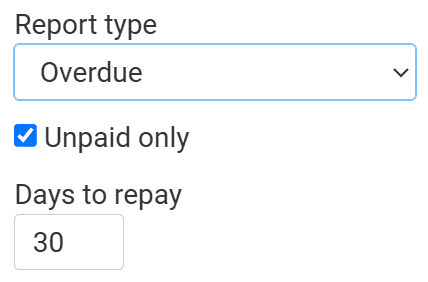
You have the option to include expenses that have been reimbursed, but were reimbursed late. Uncheck the "unpaid only" box. This helps show that your co-parent's late payments are not a new problem.
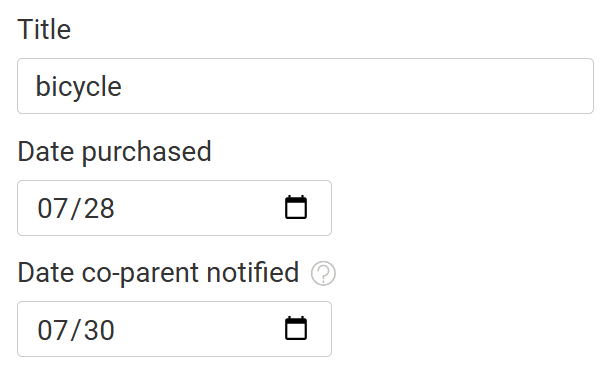
When you make an overdue report, it asks you how many days parents get to reimburse expenses. For co-parents who've linked their accounts, "days to repay" counts from the date an expense was entered. For other parents, it counts from the date the other parent was notified, which they specify when they enter an expense.
"All data" reports
Use this report if you need a complete history or want to show that your co-parent rarely makes payments. It shows all expenses entered, plus all payments.
"This month" and "last month" reports
This report serves as a monthly statement. It shows all of a month's expenses and payments.
Choose "this month" if you invoice on the last day of the month. Choose "last month" if you invoice at the start of a new month.
Custom reports
This is the most flexible report.
You can set any date range.
Plus, you'll see these checkboxes:
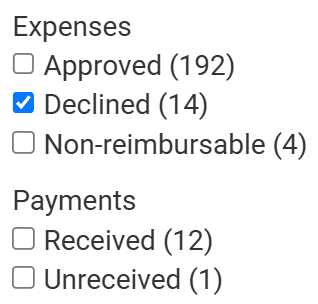
- Approved: If you check just this box, you'll get a straightforward report on the expenses parents agree to share.
- Declined: Check just this box if you need to show that your co-parent regularly declines expenses (or enters expenses you have to decline).
- Non-reimbursable: Checking only this box creates a report on what you spend beyond shared costs.
- Received: If you check just this, you'll get a simple payment report that doesn't include unreceived payments.
- Unreceived: Check just this if you need to show that your co-parent often lies about sending or receiving money.