
Disagree With an Expense or Payment
We know co-parents don't always agree on expenses and payments. To protect you, Custody X Change lets you decline to reimburse an expense and mark a payment as not received. In response, the other parent can enter a reason the item is indeed valid.
All this information will appear in relevant expense reports so you have a complete record for mediation or court.
Why should I mark when I disagree with an item?
- It removes the item from the overall calculation of who owes whom. That way, neither parent has to worry about disputed items complicating the balance.
- It creates a record of what happened. You can quickly make a report on everything you've had to decline or never received.
- It prevents conflict from escalating. You can stand up for yourself without getting into a shouting match.
Decline to reimburse an expense
When you open an expense, you'll see a "decline expense" button. (If you entered the expense, you'll also see an "edit" button. If the other parent entered the expense, you can't make any other changes to their entry.)
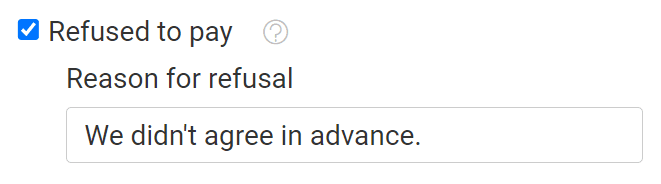
Type in a reason if you like.
On the main expenses page, declined expenses look like this. They do not count toward the total owed, nor do they show up when you filter for unpaid expenses.

Respond to a declined expense
When you click on an expense your co-parent has declined, you'll see "reason why it's valid" near the bottom of the entry. Click "add reason" to respond.
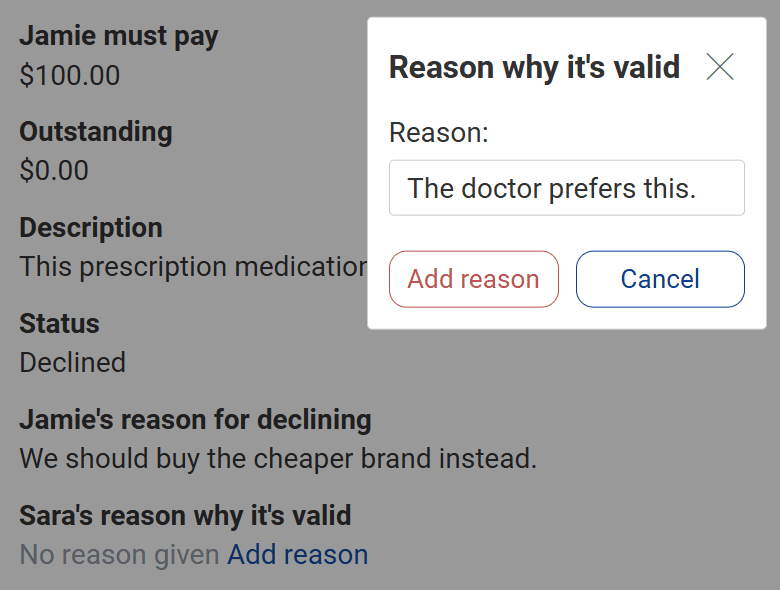
The reason you give will appear in expense reports along with the reason your co-parent gave for declining to pay.
Mark a payment as not received
When you open a payment, you'll see a "mark as not received" button. (If you entered the payment, you'll also see an "edit" button. If the other parent entered the payment, you can't make any other changes to their entry.)

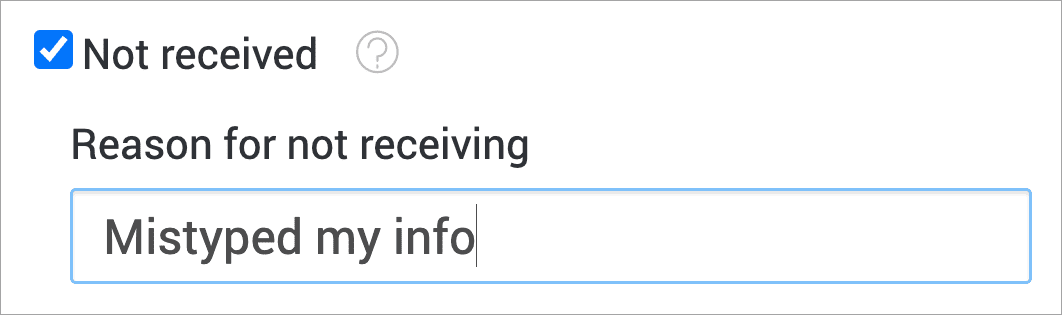
You can type in a reason.
On the main expenses page, unreceived payments look like this. They don't reduce the total owed.

Respond to an unreceived payment
When you click on a payment your co-parent has marked as not received, you'll see "message why it's valid" near the bottom of the entry. Click "add message" to respond.
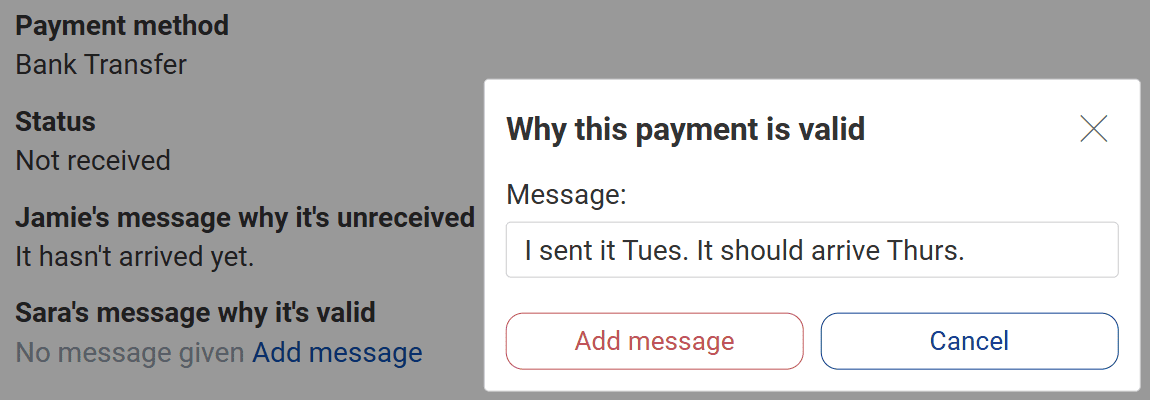
Your message will appear in expense reports along with the message your co-parent wrote when they marked the payment as not received.